
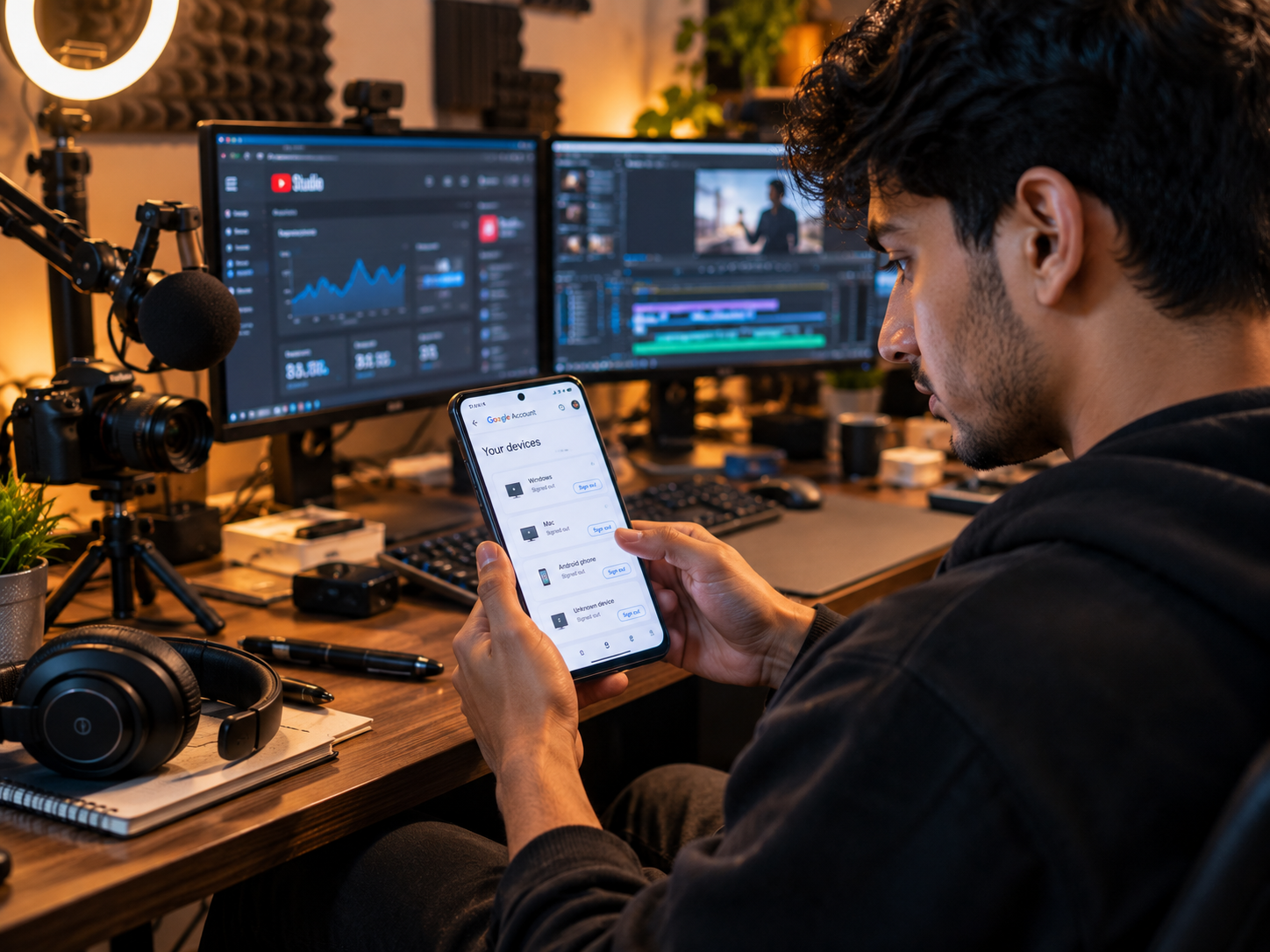
Every creator knows the golden rule of online safety: change your password immediately if your account behaves unexpectedly. While updating your credentials is an essential first line of defense, modern account takeovers often involve stolen browser session tokens or shared workstations that require dedicated endpoint management.
If an unauthorized person accesses your account through infostealer malware or an unmanaged studio workstation, changing your credentials alone may not address every immediate exposure. Knowing how to revoke active sessions on YouTube and Google platforms ensures you proactively cut off lingering device access before unauthorized actions can escalate.
This comprehensive guide breaks down how browser session access works, what warning signs to look for, and the official step-by-step procedures recommended by Google and YouTube to audit and secure your active devices.
Table of Contents
1. How Session Authentication Works in YouTube Studio
To understand why creators need to revoke active sessions on YouTube, it helps to understand how Google handles account authentication across devices.
When you enter your primary email, master password, and two-factor authentication (2FA) prompt, Google’s authentication systems verify your credentials and establish an active authenticated state, generally maintained through browser session tokens and cookies. While the exact underlying architecture and session handling may vary depending on the service, platform, and device context, the general operational outcome is the same: your browser remains recognized as logged in.
This session state allows you to upload videos, edit descriptions, and check analytics across multiple tabs without typing your password each time you load a new page.
However, this ongoing access introduces practical operational risks:
- Token Exfiltration Risks: If infostealer malware compromises a desktop, it may copy authenticated browser cookies. In certain scenarios, an attacker using a valid stolen session token can bypass standard login prompts until that session expires, is invalidated, or is actively revoked.
- Shared Workstation Exposure: Leaving a production machine signed in allows anyone with physical or remote access to manage your channel without needing your master password.
- Why Manual Revocation Matters: Google’s official security documentation advises creators to review the device activity list directly. Relying solely on credential updates without actively inspecting signed-in hardware leaves room for unmonitored devices to remain connected. Whenever suspicious activity occurs, the priority should always be to revoke active sessions on YouTube accounts across all unverified hardware.
2. Warning Signs of Compromised Channel Access
If an unauthorized party has gained access to your channel, you may notice distinct operational abnormalities:
- Unexplained Channel Modifications: Video titles, privacy settings (such as public videos switched to unlisted), upload defaults, or scheduled community posts change without team approval.
- Unrecognized Hardware in Account Settings: New operating systems, browsers, or unfamiliar geographical locations appear in your security history, signaling that you must revoke active sessions on YouTube immediately.
- Unexpected Security Prompts: Receiving Google verification alerts or two-factor notifications on your mobile device when you are not actively logging in. While not definitive proof of an intrusion on their own, frequent unsolicited prompts indicate an external party may be testing your credentials.
- Role Management Notifications: Automated emails alerting you to new managers or editors added in YouTube Studio that you never invited.
3. Step-by-Step SOP: How to Revoke Active Sessions on YouTube
Follow this verified sequence to inspect your account perimeter, terminate unverified sessions, and protect your channel permissions. For maximum safety during an active incident, perform these steps from an uncompromised mobile device using mobile data rather than a potentially infected desktop computer.
Step 1: Manage and Terminate Active Devices in Google
Google centralizes all session management inside your account security dashboard. Use this documented path to safely revoke active sessions on YouTube endpoints:
- Open your browser and go to the official portal: Google Account Device Activity
- Locate the section labeled Your devices and select Manage all devices.
- Inspect the full list of devices, platforms (Windows, macOS, Android, iOS), and last-active timestamps.
- If you see an unrecognized device or an obsolete session:
- Click on the specific device entry.
- Select the Sign out button.
- Confirm the prompt to revoke that session.
- If you are dealing with an active, confirmed account emergency, choose to revoke active sessions on YouTube across all other active desktop sessions to contain unauthorized actions while you secure your credentials.
Step 2: Rotate Account Credentials and Security Keys
Once suspicious hardware has been signed out, reset the underlying credential base:
- Navigate directly to: Google Account Password Settings
- Verify your current identity and create a unique, high-entropy password (ideally 16 or more characters generated by an encrypted password manager).
- Review your 2-Step Verification settings to ensure backup phone numbers, authenticator apps, and physical security keys are strictly under your control.
Step 3: Audit YouTube Studio Delegated Permissions
Threat actors who gain brief access frequently attempt to establish secondary footholds by assigning managerial roles to third-party accounts. Keep in mind that exact permissions menus and delegation settings can vary depending on whether your channel uses standard YouTube Studio permissions or Brand Account roles; follow the specific options shown for your channel type:
- Open your channel backend: YouTube Studio Settings
- In the left-hand sidebar, navigate to Settings > Permissions (or check your Brand Account details if prompted).
- Review the available options and verify every listed collaborator and their assigned role tier (such as Manager, Editor, Subtitle Editor, or Viewer).
- If any unrecognized email address appears, use the available interface options to remove that user, and save your changes.
Step 4: Local Workstation Sanitization and Investigation
Clearing local browser data removes saved local cookies, but understanding its technical scope is important:
- The Limitation: Purging local browser data only affects the workstation in front of you; it does not automatically revoke tokens that an attacker has already copied onto another machine.
- Malware Scanning & System Reinstallation: If malware is suspected, run a thorough scan using reputable, updated endpoint security software. If the infection is severe, persistent, or cannot be reliably removed, backing up critical media files and performing a clean operating system reinstallation is strongly recommended.
- Browser Profile Reset: On your production computers, clear stored browsing data under browser settings (
Ctrl + Shift + Deleteon Windows orCmd + Shift + Deleteon Mac) and verify that no unvetted extensions remain installed.
4. Remediation Method Comparison
Understanding the real-world coverage of each action helps you apply the correct response level:
| Security Action | Primary Benefit | Scope of Protection | Operational Limitations |
|---|---|---|---|
| Password Reset Alone | Updates central account credentials | Helps block new standard login attempts with the old password | Does not address existing active sessions or compromised session tokens immediately. |
| Manual Device Sign-Out | Targets active sessions individually | Revokes specific authenticated sessions from Google servers | Does not guarantee revocation of every stolen token; cannot clean local malware. |
| Combined SOP (Sign-Out + Credential Reset + Device Audit) | Comprehensive account hardening | Clears unvetted endpoints, updates credentials, and audits channel roles | Involves operational downtime as legitimate team members must re-authenticate. |
5. Pros and Cons of Comprehensive Session Revocation
Pros
- Targeted Threat Reduction: Taking the time to revoke active sessions on YouTube directly disconnects unauthorized, forgotten, or stale browser sessions across all operating systems.
- Limits Unchecked Channel Tampering: Reduces the opportunity for unauthorized users to alter video visibility, delete playlists, or launch unauthorized streams.
- Enforces Clean Re-Authentication: Requires every team member to re-verify their credentials, restoring visibility across your studio operations.
Cons
- Workflow Interruption: Legitimate editors, remote managers, and scheduled production workflows are logged out and must sign back in.
- Potential Loss of In-Progress Uploads: Active video rendering or file uploads currently processing in a browser session may be interrupted.
- Setup Overhead: Requires manually reconnecting trusted mobile apps, smart displays, and authorized production devices.
6. Official Resources & Verification Portals
- Turbo Suite Channel Security Database: Troubleshooting Creator Defense Directory — Explore our complete database of YouTube security incidents, problem statements, threat matrices, and creator mitigation SOPs.
- Google Account Management: Google Device Activity Dashboard — Official management hub to view and terminate signed-in devices.
- Google Security Audit: Google Security Checkup — Automated portal for discovering security gaps and vulnerable settings.
- YouTube Creator Support: Fix a Compromised YouTube Channel — Official step-by-step guidance on recovering hacked accounts.
- YouTube Studio Access: YouTube Studio Permissions Hub — Direct link to audit and adjust delegated team roles.
7. Frequently Asked Questions (FAQ)
Does changing my Google password automatically kick out all unauthorized users?
While changing your password updates account credentials and prompts re-authentication across many services, it should not be relied upon as a stand-alone guarantee. Google officially recommends navigating to your account settings to manually review your active devices and explicitly revoke active sessions on YouTube profiles to ensure access is terminated.
Why is it important to revoke active sessions on YouTube channels regularly?
Regularly checking your device list prevents orphaned access. Old laptops that have been sold, shared editing computers, and forgotten browser logins can remain connected long after you stop using them. Taking a few moments to revoke active sessions on YouTube account dashboards removes these unnecessary access points.
Can an attacker bypass two-factor authentication (2FA)?
Two-factor authentication protects the initial login boundary. If an attacker acquires a valid session cookie through infostealer malware, they may bypass the standard login and 2FA challenge under certain circumstances. However, Google frequently triggers secondary verification prompts for highly sensitive administrative changes, such as transferring channel ownership.
Does signing out of active devices delete my scheduled videos?
Signing out of devices terminates browser sessions and will not typically delete content that is already scheduled or published on YouTube. However, active file uploads in progress or unsaved drafts in an open browser tab may be interrupted when that session disconnects.
What should I do if an unrecognized device reappears after I sign it out?
An unrecognized entry reappearing can happen for several reasons: a team member or background service logging back in, sync activity on another device, an authorized third-party integration, or local malware capturing new credentials. Disconnect the machine from the network, run a full security scan, audit connected apps in your Google Account settings, and update your credentials from an isolated, clean device.
8. Operational Channel Hygiene Checklist
- Inspect your signed-in hardware bi-weekly via Google Account Device Activity.
- Check the Troubleshooting Creator Defense Directory regularly to stay updated on emerging creator security threats and workflow checklists.
- Ensure that production team members access your channel exclusively through YouTube Studio Permissions rather than shared master logins.
- Avoid saving master account passwords in shared browser profiles on editing workstations.
- Follow an established offboarding protocol: revoke active sessions on YouTube rigs, sign out of all Google accounts, and remove account profiles before selling, donating, or reassigning production computers.
- Store account recovery backup codes in an encrypted, offline location away from your primary production workstation.