
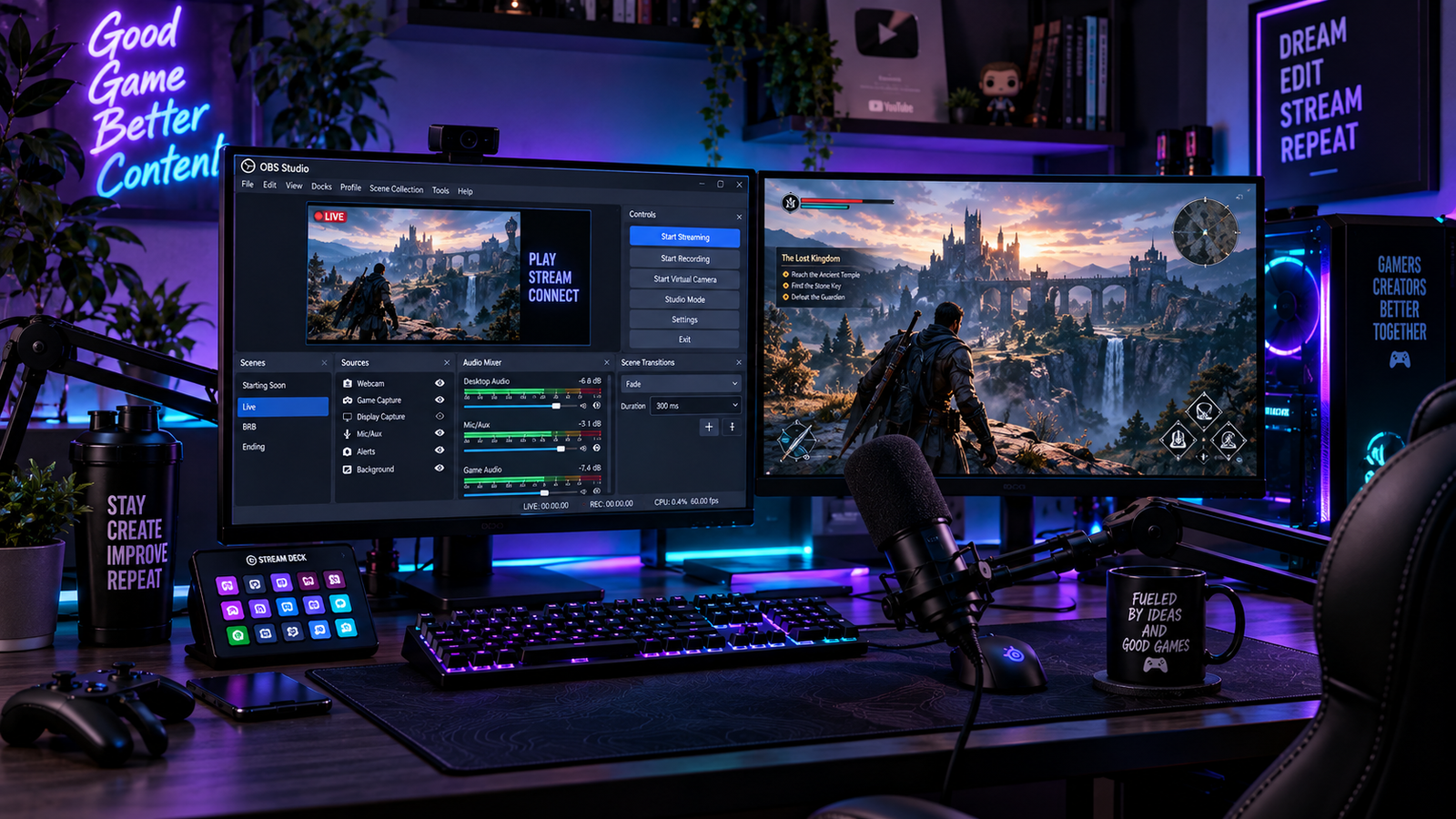
Adding a Game Capture source in OBS Studio only to be greeted by a completely black screen is one of the most common hurdles for streamers and video creators. Your in-game audio might register normally in the mixer, yet the visual preview canvas remains completely dark. Learning how to fix obs game capture black screen issues helps you restore clean video output without relying on slow or unstable display workarounds.
Unlike basic display or window capture, Game Capture functions by hooking directly into the graphics rendering pipeline of your game, including supported DirectX and OpenGL games. When Windows permissions, multi-GPU assignments, third-party overlay utilities, or specific game restrictions interfere with this graphics hook, the preview output fails to appear. Understanding how to fix obs game capture black screen ensures you can diagnose the problem accurately before your scheduled stream.
In this practical troubleshooting guide, we cover 5 proven, step-by-step methods on how to fix obs game capture black screen errors based on official OBS Project documentation and reliable production workflows.
Table of Contents
Why OBS Game Capture Displays a Black Screen in Windows
Before adjusting settings, identifying why the capture hook cannot display your game frame is essential. When researching how to fix obs game capture black screen errors on Windows 10 or Windows 11, the problem usually stems from one of four primary factors:
- Mismatched GPU Assignment (Laptops & Multi-GPU Systems): If your game executes on a high-performance dedicated graphics card while OBS Studio defaults to integrated graphics, the capture engine cannot access the shared graphics texture.
- Windows Privilege Disparity: Some games run with elevated administrative privileges. If OBS Studio runs as a standard user process, Windows security restrictions may prevent OBS from hooking into the elevated game.
- Third-Party Overlay Interference: Background utilities that render overlays on top of your game—such as RivaTuner Statistics Server (RTSS), MSI Afterburner, Discord, or Steam—can interfere with OBS’s capture hook.
- Game-Specific Capture Restrictions: Certain titles, including Counter-Strike 2 and Destiny 2, do not allow OBS Studio to hook into the game process via Game Capture, requiring alternative capture methods.
For official technical specifications regarding graphics hooks, review the OBS Project Game Capture Troubleshooting Guide to verify known compatibility limits. If you also encounter network stutter during live broadcasts, read our complete guide on how to fix OBS dropped frames to stabilize your stream bitrate.
Fix 1: Run OBS as Administrator to Fix OBS Game Capture Black Screen
One common reason Game Capture remains completely dark is a Windows privilege mismatch. If a game launches with administrative access, running OBS Studio as a standard user can prevent the software from interacting with the game process.
Step-by-Step: Run OBS as Administrator
- Fully exit both OBS Studio and your game.
- Right-click the OBS Studio shortcut on your desktop or Start Menu and select Properties.
- Open the Compatibility tab.
- Check the box labeled Run this program as an administrator.
- Click Apply and then OK.
Running OBS Studio with administrative privileges ensures the application has sufficient system permissions to hook into elevated game processes.
Fix 2: Align Windows GPU Preferences for Game Capture
On gaming laptops and dual-GPU desktop systems, Windows may assign OBS Studio to the power-saving integrated GPU while running the game on the high-performance dedicated graphics card. For Game Capture on multi-GPU systems, OBS and the game should generally run on the same GPU. Resolving this graphics mismatch is a primary workflow on how to fix obs game capture black screen issues on dual-GPU laptops.
Step-by-Step: Align Windows GPU Preferences
- Open Windows Settings (
Win + I) and navigate to System > Display > Graphics. - Under the Custom options for apps list, check for OBS Studio. If it is not listed, click Browse and locate
obs64.exe(typically inC:\Program Files\obs-studio\bin\64bit\). - Click on OBS Studio and select Options.
- Set the preference to High performance (your dedicated NVIDIA or AMD graphics card).
- Click Save, then restart both OBS Studio and your game.
Matching your GPU selection resolves texture-sharing conflicts and stabilizes your recording environment.
💡 Creator Resource: Dealing with rendering crashes, encoder bottlenecks, or audio synchronization delays across your streaming setup? Search our master Creator Troubleshooting Database: 5,000+ Production Fixes to diagnose workflow snags in seconds.
Fix 3: Switch Capture Mode to “Capture Specific Window”
By default, the Game Capture source uses the Capture any fullscreen application mode. When games run in borderless windowed mode or initialize custom display parameters, OBS Studio may not automatically detect the active window handle. Applying manual window selection is an effective adjustment on how to fix obs game capture black screen stalls.
Step-by-Step: Capture Specific Window
- In the Sources dock of OBS Studio, double-click your Game Capture source to open its properties.
- Change the Mode dropdown from Capture any fullscreen application to Capture specific window.
- Under the Window dropdown, select the specific executable process of your running game.
- Set Window Match Priority to Match title, otherwise find window of same executable.
- Click OK.
Targeting the specific game executable can reduce automatic detection issues and provides a more predictable capture setup for non-exclusive display modes.
Fix 4: Disable Conflicting Overlays (RivaTuner, Discord & Steam)
Third-party background software that draws frames on top of your game uses hooking techniques that can conflict with OBS Studio. If multiple programs attempt to hook into the game presentation layer simultaneously, the capture source can fail to display. Addressing background utilities remains crucial when evaluating how to fix obs game capture black screen problems.
Step-by-Step: Disable Conflicting Overlays
- RivaTuner Statistics Server (RTSS) / MSI Afterburner: If you run RTSS for performance metrics, open RTSS, navigate to Setup, and enable the option labeled Use Microsoft Detours API hooking. If capture issues persist, close RTSS and MSI Afterburner entirely before starting OBS.
- Discord In-Game Overlay: Open Discord User Settings > Game Overlay and disable the in-game overlay toggle.
- Steam / GeForce Experience Overlays: Temporarily disable the Steam overlay (
Settings > In-Game > Enable the Steam Overlay while in-game) to verify if the hook conflict resolves. - In your OBS Game Capture Properties, ensure the option labeled Capture third-party overlays (such as steam) is unchecked while troubleshooting.
Removing overlay conflicts can restore normal Game Capture hooking when one of those applications is causing the problem.
Fix 5: Use Window Capture as an Alternative for Restricted Games
Some competitive multiplayer titles deliberately prohibit Game Capture hooks to maintain game integrity. Games like Counter-Strike 2 and Destiny 2 do not allow OBS to hook in through Game Capture, so OBS recommends using Window Capture instead. Understanding when to use alternative sources is fundamental when learning how to fix obs game capture black screen limitations across anti-cheat titles.
Step-by-Step: Use Window Capture for Restricted Titles
- In the Sources dock, click the + (Add) icon and select Window Capture.
- Select your active game window from the Window dropdown menu.
- Under the Capture Method dropdown, select Windows 10 (1903 and up).
- If the game runs in exclusive fullscreen, switch the in-game display setting to Borderless Windowed mode so the window compositor can capture the screen.
Using Window Capture provides a reliable, officially supported alternative when recording or streaming games that block standard Game Capture hooks.
If you are setting up a comprehensive live broadcast environment with external audio gear and webcams, review our detailed live streaming setup guide to optimize your canvas resolutions and hardware encoding profiles.
Step-by-Step Summary on How to Fix OBS Game Capture Black Screen
Use this quick-reference matrix to diagnose your symptoms and determine the appropriate fix:
| Symptom in OBS Preview | Probable Root Cause | Recommended Production Fix |
|---|---|---|
| Black screen with game audio working (Laptop) | GPU assignment mismatch between OBS and game | Assign OBS to the High-Performance GPU in Windows Graphics settings |
| Black screen on restricted competitive titles | Game does not allow external Game Capture hooking | Switch to Window Capture using the Windows 10 capture method |
| Preview frozen or black with monitoring tools active | Hook conflict with RTSS, Afterburner, or Discord | Close monitoring overlays or enable Microsoft Detours in RTSS |
| Game Capture does not detect newly opened game | OBS lacks elevated administrative access | Run OBS Studio as an administrator |
| Red dot in top-left corner with black canvas | Game Capture source size or transform is stuck | Right-click source, select Transform > Reset Transform, then Fit to Screen |
Frequently Asked Questions (FAQ)
Why does OBS Game Capture show a red dot in the corner instead of the game?
A red dot or tiny square in the top-left corner indicates that the Game Capture source size or transform state has become stuck or misaligned. To fix this, right-click the Game Capture source in your sources list, go to Transform, select Reset Transform (Ctrl + R), and then choose Fit to Screen (Ctrl + F) to reset the source dimensions to your canvas.
Is Window Capture slower than Game Capture in OBS Studio?
In older Windows versions, Window Capture could introduce desktop compositor overhead. However, when using the modern Windows 10 (1903 and up) capture method, performance impact is generally minimal, making it an effective solution for games that do not allow Game Capture hooks.
Does Windows Game Mode cause a black screen in OBS?
Windows Game Mode is not a primary cause of a black Game Capture preview, nor is toggling it a direct fix. On current Windows versions, OBS Project guidance recommends leaving Game Mode enabled. If you experience issues, reviewing the steps on how to fix obs game capture black screen regarding administrator rights, GPU matching, and overlays should be your first priority.