
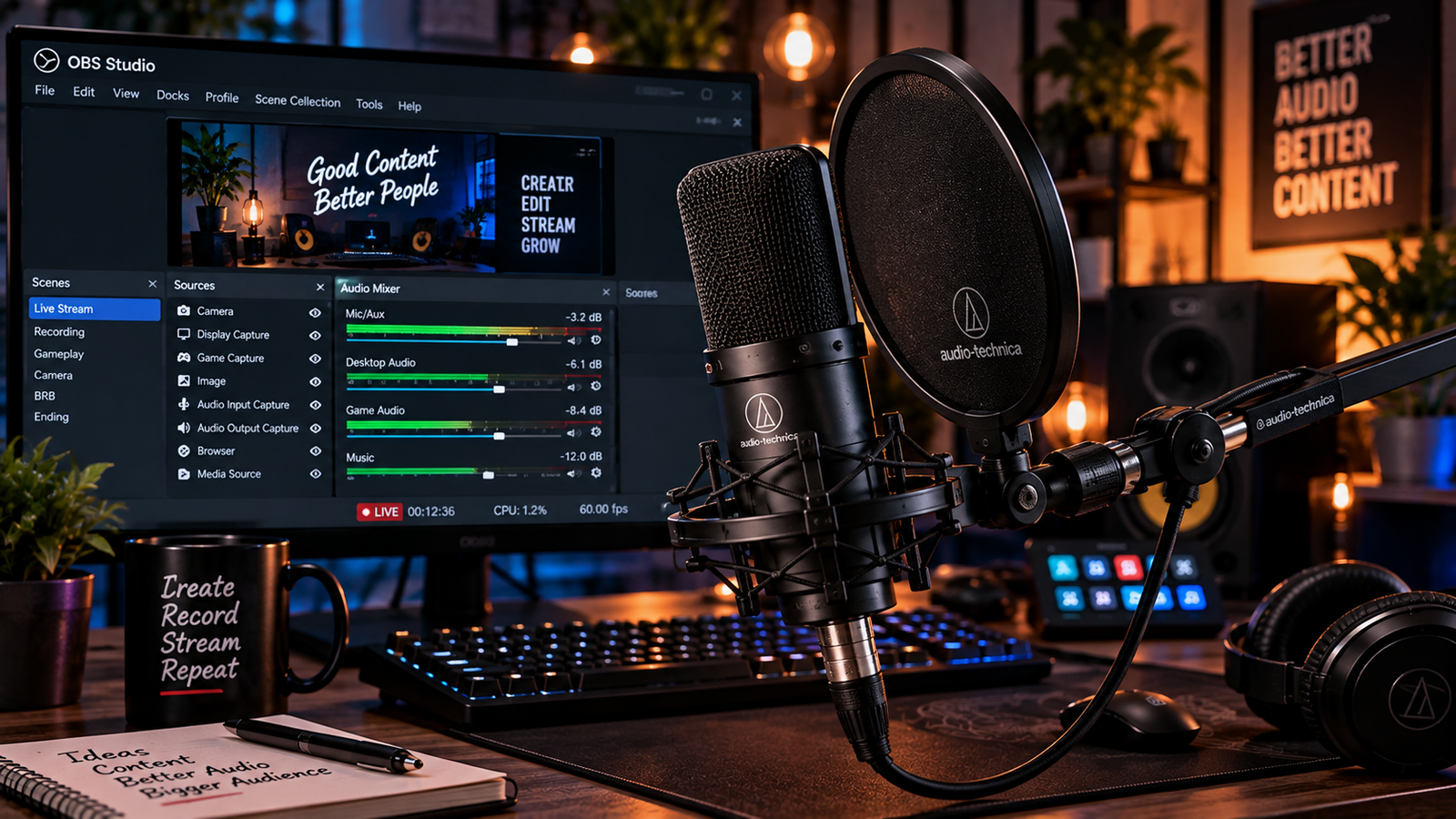
Broadcasting or recording with persistent microphone static, background hiss, or electrical hum instantly undermines your stream quality. Even if your game capture and video resolution look crystal clear, audience members will quickly leave if your commentary is masked by buzzing noise. Learning how to fix microphone static in obs enables you to clean up your voice track using proper hardware configuration and native audio filters.
Microphone noise usually originates from one of two places: physical hardware issues (such as excessive preamp gain, electromagnetic interference, or unshielded cables) or unoptimized digital processing within your broadcast software. Knowing how to fix microphone static in obs ensures that you address the underlying cause of the noise floor instead of applying destructive filtering that makes your voice sound muffled or robotic.
In this practical troubleshooting guide, we cover 5 proven, step-by-step methods on how to fix microphone static in obs based on official OBS Project documentation and sound audio engineering practices.
Table of Contents
What Causes Microphone Static and Background Hum in OBS?
Before adding multiple filters to your audio chain, identifying the source of your audio interference is essential. When researching how to fix microphone static in obs, unwanted noise typically falls into distinct technical categories:
- High-Frequency White Noise / Hiss: Commonly caused by improper gain staging. When an audio interface, USB microphone, or motherboard preamp gain is pushed too high, the electronic noise floor becomes audible.
- Low-Frequency 50Hz/60Hz Electrical Hum: Often caused by ground loops between interconnected hardware, or electromagnetic interference from running unshielded analog audio lines parallel to high-draw AC power cables.
- Acoustic Background Ambient Noise: Physical sounds in your environment—such as mechanical keyboard switches, PC cooling fans, and room reflections—entering the microphone capsule.
Identifying which interference category is entering your audio signal path makes understanding how to fix microphone static in obs much simpler. For official guidance on OBS audio processing, review the OBS Project Audio Filters Documentation to understand filter capabilities. If you also encounter visual capture errors while streaming games, read our step-by-step guide on how to fix OBS game capture black screen to stabilize your video feeds.
Fix 1: Optimize Hardware Gain Staging to Fix Microphone Static in OBS
Excessive background hiss frequently occurs when your analog or operating system input levels are maxed out, forcing preamps to boost the inherent noise floor.
Step-by-Step: Calibrate Input Gain
- Open Windows Sound Settings (
Win + I > System > Sound) and check your active input device properties. Avoid pushing software input to 100% if your interface or sound card introduces noticeable distortion at maximum levels. - If your microphone or audio interface features a physical gain dial, start with a moderate gain level rather than maxing it out.
- In the OBS Studio Audio Mixer, speak into your microphone at your normal conversational volume and distance.
- Adjust your physical gain dial so your normal speech sits comfortably in the yellow zone of the OBS mixer meter without peaking into the red clipping area.
Calibrating your physical hardware gain first establishes a clean signal-to-noise ratio, providing an essential foundation when learning how to fix microphone static in obs.
Fix 2: Isolate Ground Loops and Cable Interference
If your microphone produces a constant low drone, buzz, or electrical hum, the noise is frequently entering through physical connections rather than software configuration.
Step-by-Step: Check Physical Connections
- Connect Directly to the Motherboard: For USB microphones, connect directly to a rear USB port on the motherboard to avoid unshielded front-panel header cables or unpowered USB hubs.
- Separate Power and Audio Cables: Route analog 3.5mm and XLR microphone lines away from power strips, monitor power bricks, and AC cables to prevent electromagnetic coupling.
- Verify Power Grounding: Ensure your PC setup is connected to an outlet with proper electrical grounding to help minimize ground loop voltage differentials.
- Inspect Cable Shielding: Worn shielding on analog cables can act like an antenna for radio frequency (RF) interference. Testing with an alternative shielded cable helps isolate physical defects.
Isolating physical hardware cabling issues early remains an essential diagnostic step on how to fix microphone static in obs before configuring software filters.
💡 Creator Resource: Experiencing stuttering frames, render crashes, or timeline sync issues across your editing software? Search our masterCreator Troubleshooting Database: 5,000+ Production Fixesto resolve technical snags quickly.
Fix 3: Configure Native Noise Suppression in OBS Studio
OBS Studio includes a dedicated Noise Suppression filter designed to attenuate constant background noise, such as computer fans and mild environmental hiss.
Step-by-Step: Apply Noise Suppression
- In the OBS Studio Audio Mixer, click the three vertical dots (or gear icon) next to your microphone source and select Filters.
- Click the + (Add) button under Audio Filters and choose Noise Suppression.
- Under the Method dropdown, select between the two native options:
- RNNoise (good quality, more CPU usage): A higher-quality suppression model designed to attenuate mild background noise and fan hiss, requiring moderate CPU capacity.
- Speex (low CPU usage, low quality): A lightweight legacy filter designed for low-power processors, featuring a decibel threshold slider (OBS defaults to -30 dB; excessive suppression can distort natural voice tone).
- On modern multi-core systems, select RNNoise for superior audio clarity.
Configuring the appropriate suppression algorithm is an effective method on how to fix microphone static in obs for creators streaming from untreated rooms.
Fix 4: Set Up an OBS Noise Gate for Room Silence
A Noise Gate does not remove static from active speech; instead, it cuts off the audio signal entirely when you are not speaking, silencing room tone, keyboard clicks, and breath sounds during pauses.
Step-by-Step: Adjust Noise Gate Thresholds
- In your microphone Filters window, click + (Add) and select Noise Gate.
- Close Threshold: Set this slightly above the baseline noise level of your room (OBS defaults to -32 dB). When audio drops below this level, the gate closes and mutes the channel.
- Open Threshold: Set this several decibels above the close threshold so your voice opens the gate cleanly (OBS defaults to -26 dB).
- Review timing parameters: OBS default timing includes an Attack Time of 25 ms, a Hold Time of 200 ms, and a Release Time of 150 ms, which generally provides a smooth opening and closing envelope.
A calibrated gate ensures silent pauses between sentences, serving as a reliable technique on how to fix microphone static in obs.
Fix 5: Organize Your OBS Audio Filter Processing Chain
Audio filters in OBS Studio process your sound sequentially from top to bottom. Because each filter alters the signal for subsequent plugins, organizing your processing sequence deliberately helps reduce the risk of background noise being unintentionally emphasized when working through how to fix microphone static in obs.
Step-by-Step: Structure Your Processing Chain
While exact filter combinations depend on your microphone hardware and speaking style, OBS documentation provides two essential principles for organizing voice filters:
- Compressor Placement: According to official OBS guidance, a Compressor is typically placed at or near the beginning of your filter chain to even out vocal dynamics before heavy processing.
- Limiter as Final Protection: A Limiter must always be placed at the very end of your filter chain to prevent your final audio signal from exceeding 0 dB and causing harsh digital distortion.
A practical commentary chain often positions initial leveling and cleanup early, engages gating to mute pauses, and relies on a final limiter:
Plaintext
[Raw Input] ➔ Compressor (Early Dynamics) ➔ Noise Suppression ➔ Noise Gate ➔ Limiter (Final Output)
Structuring your chain in accordance with OBS signal flow principles keeps your signal balanced, completing your workflow on how to fix microphone static in obs.
If you are setting up your entire live streaming environment, consult our comprehensive live streaming setup guide to balance your game volume, stream bitrate, and desktop audio levels.
Microphone Noise Diagnostic Matrix for OBS
Use this diagnostic matrix to match your audio symptoms with the correct technical solution when figuring out how to fix microphone static in obs:
| Audio Symptom in OBS | Probable Root Cause | Recommended Production Fix |
|---|---|---|
| Constant high-frequency hiss across all volumes | Preamplifier or Windows input gain set too high | Lower input gain and calibrate physical preamps to comfortable yellow-zone levels |
| Low-frequency 50Hz/60Hz continuous buzzing | Ground loop differential or power cable coupling | Route audio lines away from power cables; connect USB to motherboard |
| Persistent room fan or computer fan noise | Ambient room noise picked up by capsule | Add the Noise Suppression filter using the RNNoise algorithm |
| Keyboard clicks and breathing heard during pauses | Microphone channel remains open continuously | Add a Noise Gate filter and adjust open/close thresholds |
| Static gets louder whenever you stop speaking | Dynamic processing or aggressive threshold settings raising audible noise floor | Review compression levels, adjust gate/suppression thresholds, and verify filter order |
Frequently Asked Questions (FAQ)
What is the difference between Speex and RNNoise in OBS?
Speex is a lightweight filter with an adjustable decibel threshold slider, suitable for systems with low CPU resources. RNNoise is a higher-quality processing model designed to reduce background and fan noise with greater clarity at the cost of additional CPU utilization. Choosing the correct suppression method based on your available processing power is key when evaluating how to fix microphone static in obs.
Why does my microphone sound robotic after adding OBS filters?
Robotic or hollow audio typically occurs when noise suppression is set too aggressively, or when multiple software suppression suites run simultaneously. Avoid stacking multiple noise-suppression systems (such as OBS RNNoise, Discord Krisp, and hardware companion apps) at the same time, as running multiple noise removal algorithms together distorts natural vocal frequencies.
Should I use digital gain or hardware gain to make my mic louder?
Hardware preamp gain on your interface or microphone should be calibrated first to establish an optimal analog signal. Digital gain inside OBS should only be used as a secondary adjustment if your physical hardware cannot reach adequate speaking levels without introducing noise.