
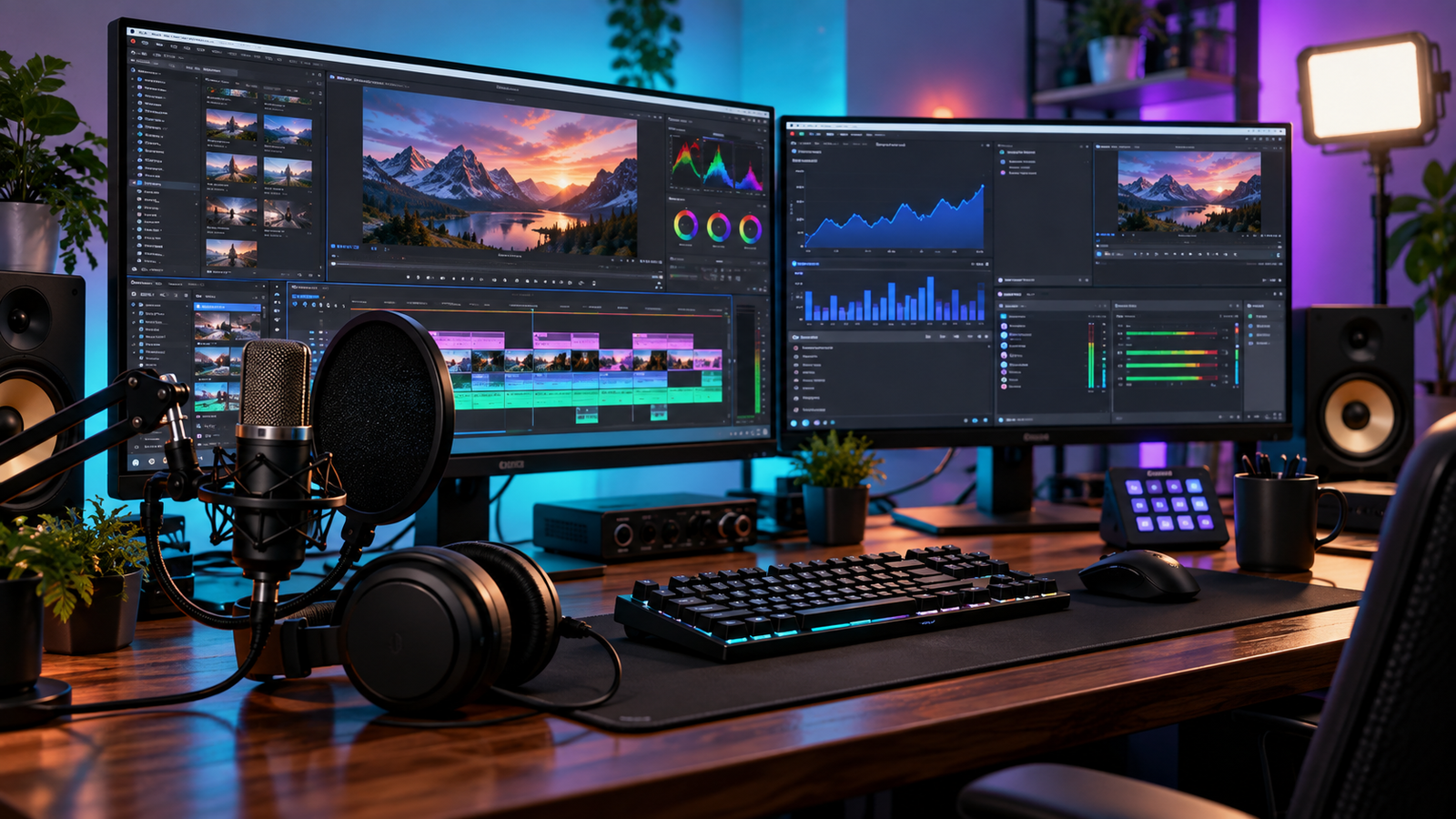
Starting or growing a modern digital channel requires far more than pointing a camera and hitting record. Between multi-track audio engineering, high-bitrate video editing, thumbnail typography, and search algorithm optimization, running a channel is essentially operating a solo multimedia production studio. Finding the tools every youtube creator needs is the single fastest way to prevent burn-out, stop system rendering crashes, and produce polished videos that attract consistent subscribers.
Without a well-planned software pipeline, creators waste valuable production hours troubleshooting export bugs, fixing desynced vocal tracks, and guessing what video titles perform best in search results. Understanding the tools every youtube creator needs allows you to spend less time managing technical friction and more time focusing on creative storytelling.
Here is the complete blueprint of the 7 tools every youtube creator needs in 2026, breaking down both zero-cost utilities and professional-grade editing software.
Table of Contents
1. Video Editing Software: DaVinci Resolve & CapCut Desktop
Your non-linear video editor (NLE) forms the backbone of your content production. Depending on your video duration, visual pacing, and PC specs, two software options lead the category:
DaVinci Resolve (Best for 4K Long-Form & Color Grading)
The free version of DaVinci Resolve by Blackmagic Design delivers high-end post-production capabilities without recurring subscription costs.
- Hardware Acceleration: Handles timeline scrubbing and multi-angle camera cuts smoothly without generating bulky intermediate proxy files.
- Integrated Fairlight Audio: Provides professional parametric equalization, multi-band compression, and vocal isolation directly inside your timeline.
- Node-Based Color Correction: Allows precise control over skin tone tracking, secondary masks, and color balance curves.
- One-Time Studio License: Unlike subscription models, upgrading to the paid version is a permanent, single-payment license. If you frequently encounter export freezes on complex timelines, see our troubleshooting guide on how to fix GPU render error in Premiere Pro and Resolve.
CapCut Desktop (Best for Fast Turnaround & YouTube Shorts)
For rapid explainer guides, dynamic jump-cuts, and short-form vertical videos, CapCut Desktop is unbeatable:
- Automated Speech-to-Text Captions: Generates animated on-screen subtitles and animated kinetic words in seconds.
- Pre-Built Visual Motion Presets: Instant camera zooms, blur transitions, and text highlights that save hours of keyframe manipulation.
- Low Hardware Demand: Runs easily on budget laptops without overloading processor threads.
Workflow Strategy: Use CapCut Desktop to produce vertical teaser shorts, while keeping long-form tutorials and documentary edits inside DaVinci Resolve. When importing smartphone footage, watch out for drift issues; you can review our fix for audio and video out of sync in CapCut to keep dialogue tight.
2. Audio Processing: Audacity & Adobe Podcast AI
Viewers will easily forgive average 1080p camera quality, but harsh room reverberation, air conditioner hums, and clipped audio distortion cause instant viewer drop-off. For crisp audio, dedicated editing plugins are part of the tools every youtube creator needs in day-to-day production.
Audacity (Open-Source Audio Engineering)
Audacity is a cornerstone among the essential tools every youtube creator needs for vocal cleanup:
- Loudness Normalization: Apply industry-standard LUFS targeting to balance master voice tracks at -14 LUFS, preventing YouTube’s compression engine from altering your playback volume.
- Sampled Noise Reduction: Capture baseline room noise profiles to eliminate PC fan whines and room hums without introducing robotic phase distortion.
- Dynamic Range Compression: Smooth out abrupt vocal spikes and boost low, whispered words to ensure consistent dialogue clarity on smartphone speakers.
Adobe Podcast AI (Virtual Acoustic Treatment)
If your studio room lacks foam padding or acoustic treatment, Adobe’s speech enhancement engine analyzes your microphone track and strips away harsh wall reflections, giving basic USB microphones the warm presence of a broadcast studio.
3. SEO & Audience Research: TubeBuddy & VidIQ
High-quality production offers little value if no search volume exists for your topic, or if search competition is so crowded that your video ends up buried.
Search Volume and Keyword Intent
Both VidIQ and TubeBuddy provide browser-integrated analytics for creator research:
- Keyword Search Volume: Verify whether creators are actively searching for your chosen software error or troubleshooting fix before filming.
- Competition Breakdown: Check the channel authority, subscriber count, and upload frequency of videos ranking on page one.
- Tag & Title Analysis: Study keyword patterns and search phrases used by the highest-performing channels in your space.
Thumbnail A/B Split Testing
Available in premium tiers, split-testing features let you upload two thumbnail versions simultaneously. The system tests both across impressions and reveals which visual asset achieves a higher Click-Through Rate (CTR).
4. Screen Capture & Live Streaming: OBS Studio
Whether recording full-screen software walkthroughs, live technical troubleshooting, or gaming commentary, OBS Studio is an absolute must-have. If you plan to broadcast live to your community, make sure to read our comprehensive live streaming setup guide for optimal bitrate configurations.
- Completely Free: No subscription fees, no artificial resolution locks, and zero watermarks.
- Multi-Track Audio Routing: Assign your microphone, system audio, Discord calls, and background music to separate output tracks (Tracks 1, 2, and 3). This enables independent audio balance adjustments during video editing.
- Modular Scene Transitions: Build dedicated scenes for full-screen camera framing, screen sharing, and lower-third graphics with smooth hotkey switching.
When establishing an efficient recording workflow, capturing crystal-clear screen feeds ranks among the essential tools every youtube creator needs to teach and entertain.
5. Visual Branding & Thumbnail Design: Canva & Photoshop
Graphic design suites represent another tier of tools every youtube creator needs to drive high impressions. Your thumbnail and title account for over 80% of your click-through potential in browse feeds and suggested video bars.
Canva Pro (Speed and Clean Layouts)
- Rapid visual assembly using drag-and-drop typography templates and graphic assets.
- One-click image background isolation for clean subject cutouts.
- Pre-set dimensions optimized for mobile and desktop screens.
Adobe Photoshop (Precision Composition)
- Multi-layer lighting effects, rim highlights, realistic drop shadows, and high-frequency face retouching.
- Custom color saturation controls that make your expression and primary text stand out against dark mode interfaces.
Rule of Thumb: Always zoom your completed thumbnail down to 10% screen scale. If your title message and facial focal point are not instantly clear, simplify your composition.
6. Copyright-Safe Music: YouTube Audio Library & Epidemic Sound
Content ID claims and copyright strikes jeopardize channel growth and ad monetization. Sourcing legitimate audio libraries is definitely one of the essential tools every youtube creator needs to protect channel revenue.
- YouTube Audio Library (Free): Found directly inside YouTube Studio. Every track is fully licensed, pre-cleared for monetization, and completely free from copyright flags.
- Epidemic Sound (Paid Library): Provides extensive channel-clearing features, searchable sound effects, and individual stem downloads (allowing you to mute drums or lead guitars to fit behind your voiceover).
7. Productivity Pipeline: Notion
Creative fatigue usually stems from disorganized assets and unmanaged production steps rather than the editing process itself. Task management utilities serve as the tools every youtube creator needs to maintain a reliable publishing cadence:
- Video Kanban Board: Track ideas through progressive stages: Backlog, Scripting, Recording, Editing, Review, and Published.
- Standardized Scripting Outlines: Use reusable templates to outline your 5-second retention hook, core problem statement, tutorial steps, and subscriber call-to-actions (CTAs).
- 💡 Creator Resource: Need quick solutions for software crashes and setup errors? Search our comprehensive Creator Troubleshooting Database: 5,000+ Production Fixes to resolve editing lag and rendering bottlenecks instantly.
Overview: Essential Tools Every YouTube Creator Needs
| Production Role | Free / Budget Setup ($0) | Professional Creator Stack |
|---|---|---|
| Video Editor | DaVinci Resolve (Free) / CapCut | DaVinci Resolve Studio / Premiere Pro |
| Audio Treatment | Audacity + Adobe Podcast AI | iZotope RX + Audacity |
| Screen Capture | OBS Studio | OBS Studio + Elgato Stream Deck |
| Thumbnail Design | Canva (Free Version) | Photoshop / Canva Pro |
| SEO Research | VidIQ (Free Extension) | TubeBuddy Pro / VidIQ Boost |
| Pipeline Planning | Notion (Personal Plan) | Notion Workspace |
Frequently Asked Questions (FAQ)
What hardware is required to run these essential tools every YouTube creator needs?
Most foundational software—including OBS Studio, Audacity, Canva, and CapCut Desktop—runs smoothly on dual or quad-core processors with 8 GB to 16 GB of RAM. For 4K timeline scrubbing and color grading inside DaVinci Resolve, a dedicated GPU with at least 4 GB to 6 GB of VRAM is recommended.
Can a beginner build a successful channel using only free software?
Yes. Millions of creators build successful YouTube channels using entirely free software: OBS Studio for screen capture, Audacity for vocal balancing, DaVinci Resolve for editing, and the YouTube Audio Library for background music.
What should be my first upgrade when budget allows?
Your first investment should be clean audio (a quality dynamic USB microphone) and an SEO keyword research tool (TubeBuddy or VidIQ) to validate video topics before spending hours filming.