
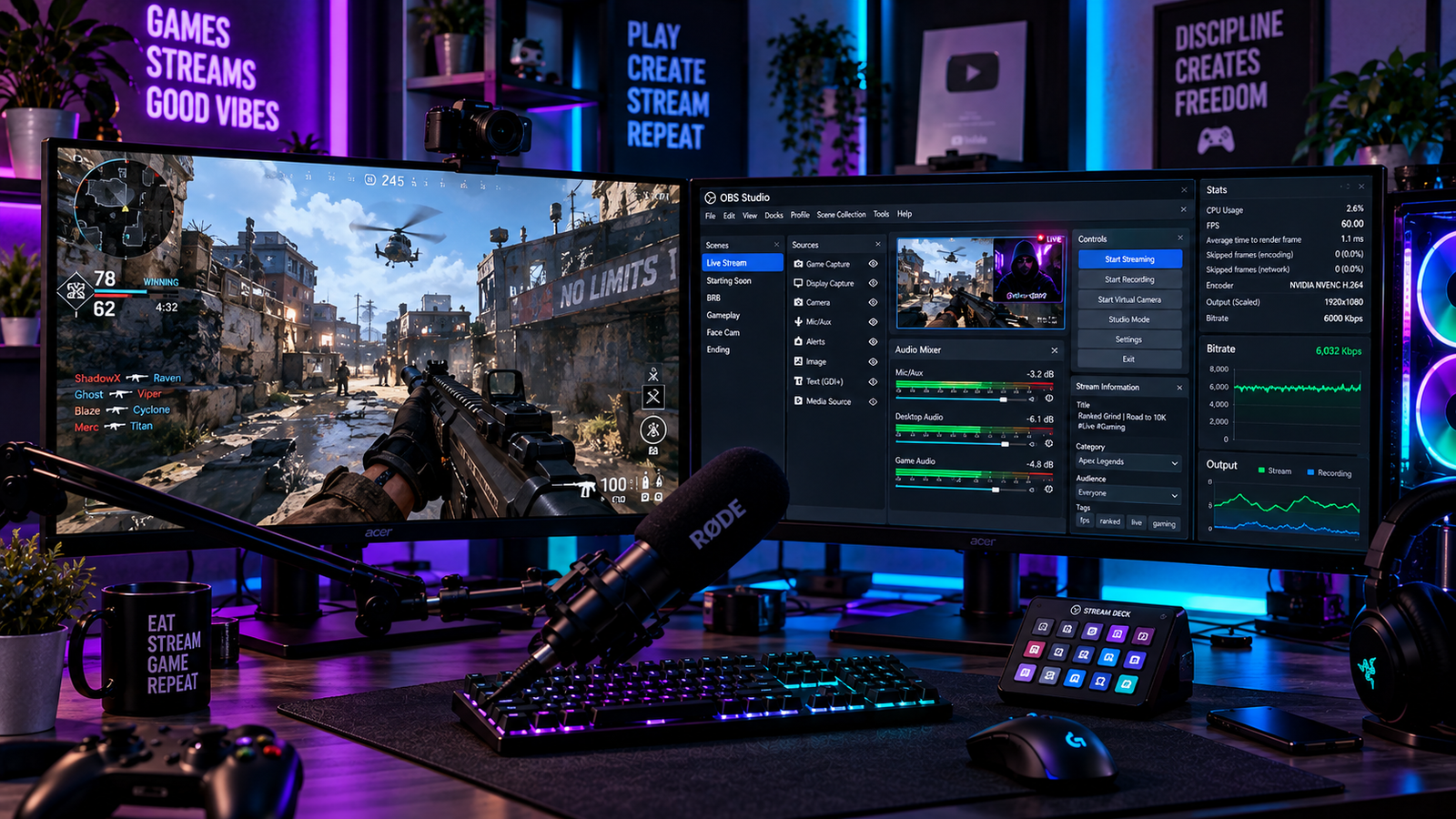
Broadcasting gameplay with crisp visuals while standing still only to watch your video break into blocky, muddy pixels during intense action is a widespread streaming challenge. Fast-paced titles such as battle royales, first-person shooters, and racing games introduce substantial pixel changes between consecutive frames. Learning how to fix pixelated stream in obs allows you to preserve clean image clarity and readable HUD text without overwhelming your hardware or exceeding platform bandwidth boundaries.
Stream pixelation (often referred to as macroblocking) occurs when the allocated video bitrate is insufficient to encode rapid screen transformations. Understanding how to fix pixelated stream in obs ensures you can balance output resolution, encoder presets, frame rates, and platform-compliant delivery settings.
In this practical troubleshooting guide, we cover 5 proven, step-by-step methods on how to fix pixelated stream in obs based on official OBS Project documentation and video compression guidelines.
Table of Contents
What Causes Stream Pixelation and Blur in OBS?
Before changing your encoder parameters, identifying why your broadcast degrades during motion is essential. When researching how to fix pixelated stream in obs, stream distortion typically relates to these technical factors:
- Bitrate Starvation in High-Motion Scenes: Video codecs rely on temporal compression, storing changes from one frame to the next. When rapid movement changes large portions of the screen simultaneously, an insufficient bitrate budget forces the encoder to compress detailed areas into visible pixel blocks.
- Non-Compliant Rate Control Modes: Using recording-oriented modes such as Constant Rate Factor (CRF) or Constant Quantization Parameter (CQP) rather than Constant Bitrate (CBR) can create erratic data swings that conflict with live streaming ingest recommendations.
- Suboptimal Hardware Encoder Configuration: Running hardware encoders with low-complexity presets prioritizes speed over compression efficiency, producing a softer image at any given bitrate.
- Excessive Resolution for Available Bitrate: Pushing a full 1080p canvas across a constrained bitrate spreads available data too thin across the frame grid during fast motion.
For official configuration guidelines and baseline profiles, consult the OBS Project Wiki on Output Settings to review recommended settings. If your broadcast also suffers from stuttering frame loss rather than compression artifacts, review our detailed guide on how to fix OBS dropped frames to diagnose network issues.
Fix 1: Configure Constant Bitrate (CBR) and Calibrate Platform Bitrate Targets
Live streaming platforms rely on a steady, predictable flow of incoming data. Configuring your rate control to Constant Bitrate (CBR) provides the consistent delivery required by streaming ingest servers.
Step-by-Step: Configure Rate Control and Bitrate
- In OBS Studio, open Settings > Output and change the Output Mode dropdown at the top from Simple to Advanced.
- Navigate to the Streaming tab and locate the Rate Control dropdown.
- Set Rate Control to CBR.
- Configure your Bitrate according to your target platform recommendations and available upload bandwidth:
- Twitch (1080p60 H.264): Configure a baseline of 6,000 kbps (the standard recommended ingest rate).
- YouTube (1080p60 H.264): Recommended target is approximately 12,000 kbps (12 Mbps).
- YouTube (1080p60 AV1 / HEVC): Recommended range is 4,000 to 10,000 kbps depending on available connection speed.
- Save your settings and verify through a test broadcast that your network upload reliably sustains your selected bitrate.
Using a platform-compliant rate control mode establishes the foundational baseline when learning how to fix pixelated stream in obs.
Fix 2: Optimize NVIDIA NVENC Encoder Presets and Tuning
If you utilize an NVIDIA graphics card, the dedicated NVENC hardware encoder delivers robust real-time compression without consuming main CPU game processing threads, provided its tuning parameters are balanced properly.
Step-by-Step: Calibrate NVIDIA NVENC Settings
- In Settings > Output > Streaming, set your Video Encoder to NVIDIA NVENC H.264.
- Set the Keyframe Interval to 2 s, which matches the standard recommendation for live streaming platforms.
- Configure your Preset:
- Start with P5: Slow (Good Quality) as your standard baseline.
- If your graphics card maintains comfortable rendering headroom during gameplay, test P6: Slower (Better Quality) for slightly improved compression efficiency.
- Set the Tuning parameter to High Quality.
- Set Multipass Mode to Two Passes (Quarter Resolution).
- Enable Adaptive Quantization (formerly labeled Psycho Visual Tuning in earlier versions) to dynamically allocate bits to areas with high visual detail and preserve edge sharpness.
Configuring these encoder controls helps maximize visual fidelity at your selected bitrate, serving as an effective step on how to fix pixelated stream in obs.
💡 Creator Resource: Experiencing audio sync drift, capture freezes, or render crashes across your creative software? Search our master Creator Troubleshooting Database: 5,000+ Production Fixes to resolve technical snags quickly.
Fix 3: Adjust Output Resolution for Bitrate-Constrained Streaming
When streaming fast-motion gameplay on platforms where bitrates are constrained to 6,000 kbps, spreading that data budget across the 2.07 million pixels of a 1080p frame often leads to visible pixelation. Downscaling your output canvas concentrates available data into fewer total pixels, yielding a cleaner image during high camera movement.
Step-by-Step: Configure Output Downscaling
- Open OBS Settings > Video.
- Leave your Base (Canvas) Resolution at your monitor’s native display setting (such as
1920x1080). - Set the Output (Scaled) Resolution to a lower target such as 1664×936 (936p) or 1280×720 (720p).
- Select a Downscale Filter:
- Bicubic (Sharpened scaling, 16 samples): Provides balanced scaling quality with minimal processing demand.
- Lanczos (Sharpened scaling, 36 samples): Delivers slightly sharper detail reproduction at the cost of marginally higher resource use.
- Ensure Common FPS Values is set to 60 (or 30 if bandwidth is severely restricted).
Balancing resolution against available bandwidth is a reliable strategy on how to fix pixelated stream in obs.
Fix 4: Set Recommended Keyframe Intervals and B-Frames
Encoder timing settings dictate how frequently reference frames are delivered to viewer players and how predictive frames are constructed.
Step-by-Step: Align Keyframe and B-Frame Parameters
- In OBS Studio, open Settings > Output > Streaming.
- Set Keyframe Interval explicitly to 2 s to align with recommended streaming configurations (such as YouTube’s guidance recommending 2 seconds and not exceeding 4 seconds).
- Locate the Max B-frames setting.
- Set Max B-frames to 2, following standard platform ingest recommendations for live video delivery.
- Apply the changes and perform a short test recording to verify smooth playback pacing.
Aligning keyframe and predictive frame parameters provides stable frame delivery, representing another key component on how to fix pixelated stream in obs.
Fix 5: Mitigate GPU Rendering Lag in OBS
If your graphics card is fully saturated by your game, OBS may struggle to render scenes on the GPU before passing frames to the encoder. This can manifest as stuttering, dropped rendering frames, or visual degradation that resembles encoder pixelation.
Step-by-Step: Reserve GPU Headroom for OBS
- Right-click your OBS Studio shortcut and select Run as administrator. Running OBS with administrator privileges allows Windows to reserve needed GPU resources for OBS scene rendering.
- In Windows, verify that Game Mode is toggled On under Settings > Gaming > Game Mode.
- In your game’s graphics settings, cap your frame rate to match your monitor’s refresh rate rather than running uncapped frame rates.
- Open OBS View > Docks > Stats and observe the broadcast during active gameplay. Verify that Frames missed due to rendering lag remains as close to 0.0% as possible.
Reducing GPU rendering overload helps OBS maintain stable frame rendering before encoding, completing your approach on how to fix pixelated stream in obs.
If your game capture exhibits blank black preview windows during streaming, read our verified tutorial on how to fix OBS game capture black screen to restore clean video inputs.
Stream Pixelation Diagnostic Matrix for OBS
Use this quick-reference diagnostic matrix to match your stream symptoms with the correct technical solution when figuring out how to fix pixelated stream in obs:
| Stream Symptom in OBS | Probable Root Cause | Recommended Production Fix |
|---|---|---|
| Stream is crisp while still, but pixelates during turns | Insufficient bitrate budget for 1080p fast-motion frames | Lower output resolution to 936p or 720p to increase bitrate density |
| Bitrate fluctuates erratically during live broadcast | Rate control set to variable recording modes (CQP/CRF) | Switch Rate Control to CBR under Advanced Output settings |
| Image appears consistently soft across all scenes | Low-complexity encoder preset or aggressive downscale | Set NVENC preset to P5/P6 baseline and test Bicubic or Lanczos filtering |
| Stream output misaligned with platform ingest recommendations | Keyframe interval left unconfigured or mismatched B-frames | Explicitly configure Keyframe Interval to 2s and Max B-frames to 2 |
| OBS Stats dock reports frames missed due to rendering lag | Graphics card fully saturated by uncapped in-game frames | Run OBS as administrator and cap in-game frame rates |
Frequently Asked Questions (FAQ)
Why does a 1080p stream look blurry compared to 720p on Twitch?
Twitch recommends a baseline ingest rate of 6,000 kbps for H.264 video. Distributing 6,000 kbps across the 2 million pixels of a 1080p canvas often results in lower bitrate density during fast motion. A 720p or 936p canvas requires fewer pixels, allowing the same bitrate budget to encode motion with greater clarity.
What is the practical difference between Bicubic and Lanczos scaling in OBS?
Bicubic (16 samples) provides clean downscaling with lower computational cost, making it suitable for most streaming setups. Lanczos (36 samples) performs more complex sampling to produce slightly sharper edges, but requires marginally more GPU rendering overhead.
Does using NVENC reduce stream pixelation better than x264?
Modern hardware encoders like NVIDIA NVENC offload video compression to dedicated silicon, preventing CPU exhaustion during gaming. Whether NVENC or CPU x264 produces better visual clarity depends on your specific GPU generation, CPU core capacity, preset complexity, and target bitrate. For most modern single-PC setups, dedicated GPU encoding provides stable performance without sacrificing game frame rates, making it a reliable solution on how to fix pixelated stream in obs.