
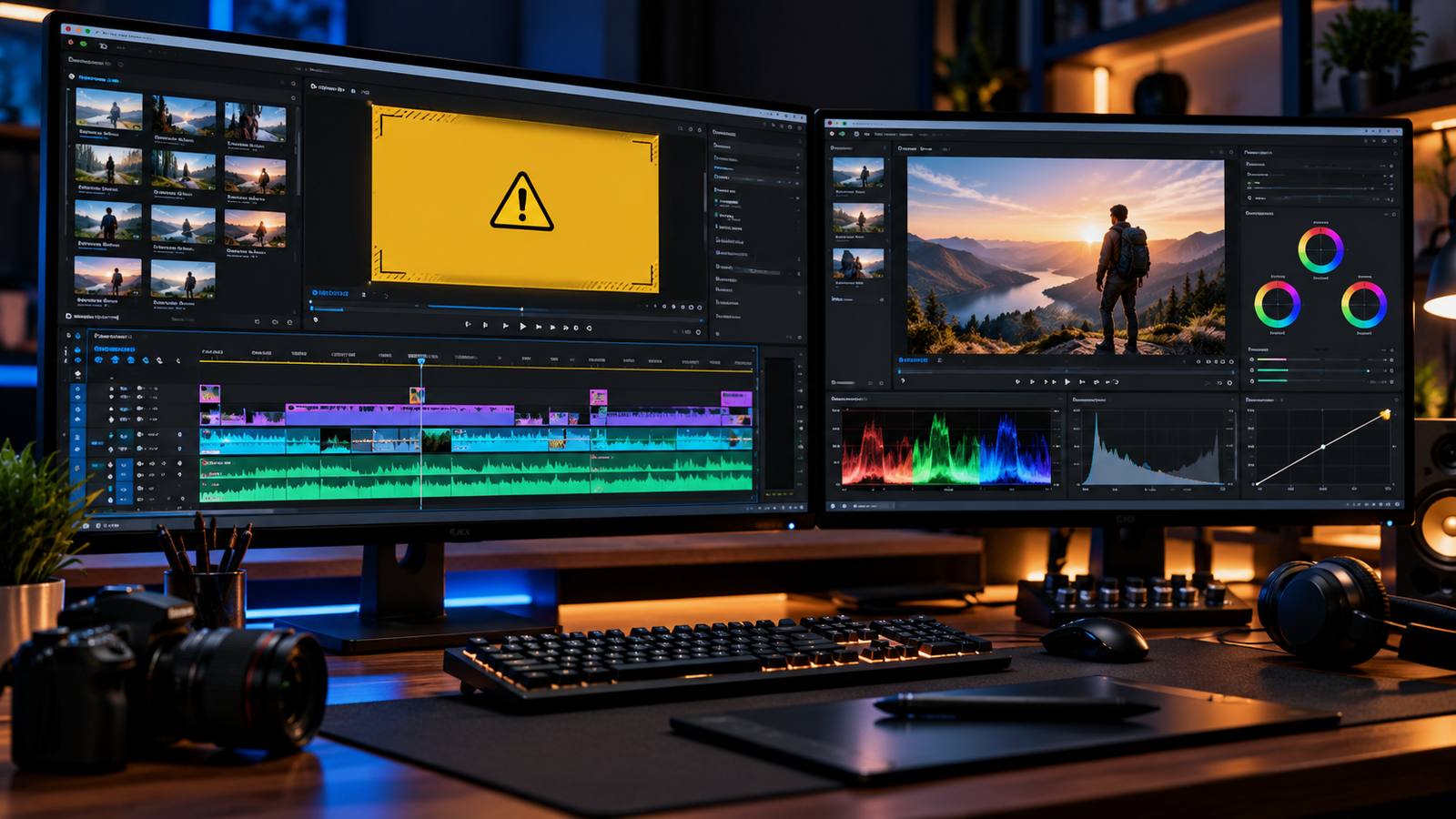
Few things disrupt an editing session faster than seeing a yellow warning screen in your program monitor. When you run into a premiere pro media pending alert, playback freezes, timeline scrubbing becomes sluggish, and your video clips fail to display their visual preview.
This warning screen generally appears when Adobe Premiere Pro is still processing, conforming audio, or generating peak and cache files for your imported assets. In smaller projects, this process finishes in the background within moments, but in larger or more complex timelines, clips can occasionally stay stuck in a premiere pro media pending state.
Before resetting your workspace or recreating your sequence from scratch, follow these practical troubleshooting steps to identify what is delaying your media and restore normal playback.
Turbocharge Your Video Workflow
Dealing with persistent timeline freezes, audio desync, or export crashes? Access CreatorFixes TurboSuite — our curated production toolkit designed to diagnose video bottlenecks, fix codec conflicts, and optimize editing performance so you can get back to creating without technical interruptions.
Table of Contents
Why Does the Media Pending Warning Screen Appear?
When media is brought into Premiere Pro, the software creates auxiliary cache files, conformed audio files (.cfa), and waveform peak files (.pek) to facilitate smooth timeline navigation and playback.
If you encounter a persistent premiere pro media pending screen on your timeline, several factors could be responsible:
- In-Progress Conforming or Cache Generation: High-resolution footage or long audio files take time to conform in the background, especially right after opening a project.
- Damaged or Outdated Media Cache Files: Stale or incomplete cache files can prevent Premiere Pro from reading previously conformed assets properly, causing an unexpected premiere pro media pending lock.
- Storage Performance Constraints: Working from slower external hard drives or nearly full local solid-state drives can slow down background conforming tasks.
- Variable Frame Rate (VFR) Media: Clips recorded using mobile phones or certain screen-recording software often record with variable frame timing, which can require extra processing resources compared to constant frame rate assets.
- Graphics Driver and Hardware Acceleration Issues: Incompatible GPU drivers or display rendering conflicts can occasionally stall video preview processing.
Step 1: Check Background Conforming and the Events Panel
Before modifying project settings when troubleshooting a premiere pro media pending notice, verify whether Premiere Pro is still actively working on your media or if a specific error has occurred:
- Look at the lower-right corner of your Premiere Pro window. If background indicators are actively displaying conforming tasks or waveform generation, allow this process to complete before scrubbing the sequence.
- Check for logged warnings by going to Window > Events.
- Inspect the Events panel for any warnings or errors that may identify the cause of the playback or media-processing problem.
- If no background conforming is active and no specific errors are logged, proceed to clearing your temporary cache.
Step 2: Clear and Rebuild the Media Cache
Clearing temporary scratch and cache files allows Premiere Pro to build fresh cache and conformed data for your media assets, as recommended in the official Adobe Premiere Pro Media Cache Guide:
- Open the Media Cache preferences:
- Windows: Go to Edit > Preferences > Media Cache.
- macOS: Go to Premiere Pro > Settings (or Preferences) > Media Cache.
- Locate the Remove Media Cache Files section and click Delete.
- Choose your cleanup preference:
- Delete unused media cache files: Removes files for media that are no longer actively referenced.
- Delete all media cache files from the system: Forces Premiere Pro to recreate cache data for all assets upon reopening the project.
- If you need to manually remove cache files while Premiere Pro is closed to resolve a premiere pro media pending loop, navigate to the default cache storage locations:
- Windows:
Users\<username>\AppData\Roaming\Adobe\Common - macOS:
/Users/<username>/Library/Application Support/Adobe/Common
- Windows:
- Re-open your project. Premiere Pro will automatically rebuild conformed audio and peak files for the media in your active sequence.
Step 3: Check GPU Acceleration and Driver Compatibility
Premiere Pro uses GPU acceleration for many playback, rendering, and effects-processing tasks, so graphics driver or GPU compatibility issues can sometimes contribute to playback problems:
- Navigate to File > Project Settings > General.
- Under the Video Rendering and Playback section, verify your Renderer configuration to ensure Premiere Pro detects your dedicated graphics hardware.
- If the media pending issue or playback stalls began after a recent graphics driver or operating system update, visit your GPU manufacturer’s website (NVIDIA, AMD, or Intel) and install the latest recommended stable driver.
- Restart your workstation after updating drivers to ensure clean communication between the operating system and Premiere Pro’s display engine.
Step 4: Temporarily Bypass Third-Party Effects
If your media pending issue only occurs on a sequence with complex grading, motion templates, or external audio filters:
- Click the Global FX Mute button (the
fxicon) beneath your program monitor to temporarily bypass all active effects. If the button is not visible, click the Button Editor (+icon) on the playback controls bar and drag it onto your toolbar. - If playback resumes cleanly once effects are bypassed, inspect individual clips to see if a specific third-party plugin or transition is stalling the render pipeline.
- Update or reinstall any outdated third-party plugins associated with the affected sequence.
Step 5: Convert Variable Frame Rate (VFR) to Constant Frame Rate (CFR)
If a premiere pro media pending alert appears exclusively on clips from smartphones, webcams, or certain screen-recording setups, inconsistent frame timing may be complicating timeline playback:
- Open your recording in a reliable video transcoder (such as HandBrake or a dedicated conversion utility).
- Choose a stable editing format such as MP4 (H.264) or an intermediate editing codec.
- Set the frame rate mode to Constant Frame Rate (CFR). Choose an appropriate constant frame rate that fits your original source and project workflow.
- Transcode the file, then verify the converted clip’s playback and duration before replacing the original media in your Premiere Pro timeline to clear the premiere pro media pending screen.
Step 6: Re-Link Moved or Offline Media
If your assets have been moved, renamed, or are stored on an unmounted external drive, Premiere Pro may display pending screens while attempting to resolve the file paths:
- Look at your Project Panel to see if any media items are marked with an offline status or missing file paths.
- If a file is unresolved, right-click the clip and select Link Media.
- Use the Locate browser to point Premiere Pro to the current folder location of the original file, then click OK.
Frequently Asked Questions (FAQ)
How long should I wait when Premiere Pro shows media pending?
There is no fixed universal duration for a premiere pro media pending alert. Short clips often finish processing quickly, but the actual time depends on the media format, storage performance, project complexity, and available system resources. Look at the lower-right background indicator to confirm whether conformed audio or peak files are actively being generated.
Will deleting the media cache delete my original video files?
No. Deleting your media cache only clears conformed audio files, peak files (.pek), and temporary preview files generated by Premiere Pro. Your original raw footage, project files, and timeline edits remain completely safe and untouched.
Why does the media pending warning only appear on specific clips?
Possible causes include that the specific clip is still completing background audio conforming, uses a variable frame rate source, contains an unsupported audio configuration, or is stored on a drive with slower read speeds.
How can I prevent Premiere Pro media pending issues on future projects?
Store your media cache on a fast internal solid-state drive (such as a dedicated NVMe SSD), regularly clear out unused cache files from project preferences, keep your GPU drivers updated to manufacturer-approved stable releases, and convert variable frame rate recordings to constant frame rate before editing.